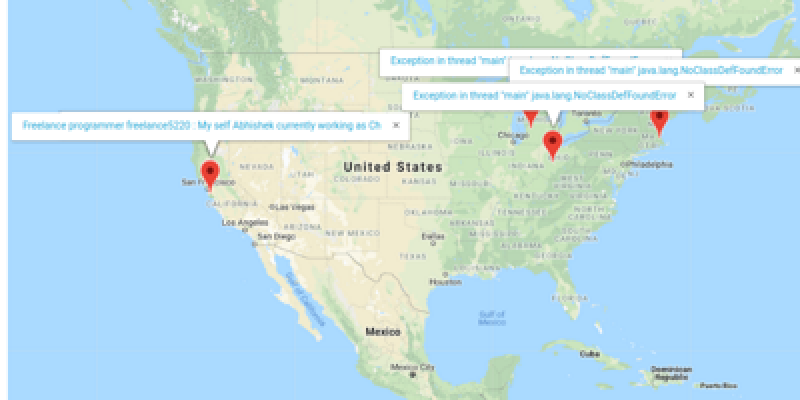
ExtraWatchTM Real-time counter and live stats
Joomla, Wordpress, Drupal, Magento, Prestashop

FREE Downloads:

PRO Purchases:


Start monitoring within 3 minutes

Email:
URL:
See demo
Access your stats

After entering your email a HTML code will be sent to your email, which you need to include to your website. This is a 30-day trial of PRO version. All emails are private according to our privacy policy.


- 30 day money back guarantee
- Read 145 user reviews ...
- Extension Directory Rating
    rating 4.86 rating 4.86 rating 4.86 rating 4.86 rating 4.86
4.86


Latest News    


Latest changes


19.05.2013
prestashop: bugfix: correct timezone for prestashop
15.05.2013
bugfix: prestashop - fix file permissions to 755 for those loaded by AJAX
15.05.2013
bugfix: prestashop - fix to display ExtraWatch stats in menu (now available for all languages)
15.05.2013
prestashop: fix to display ExtraWatch stats in menu, getting ID by class of parent tab
11.05.2013
nocms: fixed login using parameters


ExtraWatch Graphs and Trends


Viewing how well your site is performing in terms of traffic requires that you are able to visualize the context behind your recent statistics. That’s exactly what JoomlaWatch is able to offer you with its Graphs and Trends feature, a function that allows you to view not only how your site is performing today, but how it’s been performing in the previous days and weeks.


When you select the Graphs option on JoomlaWatch, you’ll likely find a screen that looks like this:


From left to right, you’ll find the performance of the individual measurable you’ve selected – in the case of the above, you can see that “goals” is the variable that’s selected. Each blue bar then denotes how many “goal” actions (defined already by you, the JoomlaWatch user) have taken place in any given day.


Let’s take a closer look at the individual features and functions of the Graphs and Trends section of JoomlaWatch to fully explore all of the information you’ll be able to find.

What Are You Seeing?

Let’s zoom in from the previous chart and focus on some of the individual blue “bars” that you’re seeing:


What exactly are you looking at? It’s simple: you’re viewing your traffic statistics for each day going into the past. For the most recent day, you can see that “542” hits have taken place.
What about the number denoting a percentage immediately below the bar?


Quite simply, that number displays the percentage in change from the previous day. For example, Tuesday’s number was down 14.5% from Monday, which in turn was 7.4% up from Sunday. If the percentage goes up, it’s noted with the color green. If it goes down, it’s given the color red, allowing you to quickly review your daily changes.

What About the Second Chart?

Below the top chart, you’ll see a chart that looks like this:


In this chart, the principles are essentially the same, except you’re seeing the tabulated results by each week, not be each day.

The Drop-Down Menu

When you first open up the Graphs section, you’ll notice a drop-down menu near the top center of the page:


This drop-down menu allows you to customize the exact kind of feedback you’re looking at for the rest of the graphs.


In general, the feedback you see from the graphs will be more or less the same – what will change are the actual numbers being reported – those will correspond with the variable you have selected from the drop-down menu.

What Are You Looking At?

The information you get here is simple. Along the X-axis, you’ll see the information listed according to the days being measured.


Along the Y-axis, you’ll see how many “hits” each variable made for that day. In this case, for example, you can see that Monday, 06.02, received 1,137 hits for the predetermined goal.
Of course, the graphs don’t just measure how many goals were hit.

Other Options

Much of the work you do in using these graphs will come from usage of the drop-down menu, in which you can select a number of options, including:

- Goals

- Referers

- Internal

- Keyphrase

- Keywords

- URI

- Users

- Country

- IP

- Browser

- OS (operating system)

- Size_db

We’ve already looked at Goals. But let’s look at these variables individually to fully explain the capabilities of JoomlaWatch’s Graph features.

Referers

Once you select “Referers,” your Graph results will then be sorted by the top-performing referrers to your site on any given day. For example, you might see this headline above the charts:

This will give you all the statistics from Google referrals in recent days. As you scroll down, you’ll see the next highest refers in the order of how many referrals they’ve sent to you in that particular day.

Internal

Viewing your top internal hits will show you not only to which portion of your site people are clicking to, but which portion of your site they’re also clicking from. Here’s how it looks on ours:


As you can see, the internal link of /download/?Itemid=31 leading to the site /download/ was the top internal hit. Scroll down and you’ll view more top internal hits for your site.

Keyphrase and Keyword

Keyphrase and keyword are separate categories, but they have a number of similarities. In JoomlaWatch’s Graphs feature, you can monitor the different keyphrases and keywords that people are typing on your site. Again, the feature will sort the keyphrases and keywords by showing you the top-performing ones at the top of the graphs page.


Through this feature, you’ll be able to monitor the top-performing keywords and keyphrases on your site and have a better idea of what your audience typically likes to view. The major difference: keywords will focus on single words, while keyphrases might be more complex search queries.

URI

The Uniform Resource Identifier variable is an important one because it will break down the traffic you receive by the subpages on your site that are most frequently visited. As you can see here:


You’d be viewing the individual stats for the page /download. Essentially, what comes after your domain name is considered a URI, which is why it’s so important to monitor them from the Graphs and Trends page.

Users

When you have users registered on your site with the Joomla capabilities, you’ll then be able to measure how frequently they access your site. Like the other features, when you select “users” from the drop-down menu that you see on the top, you’ll then be taken to a screen that filters by the most active users on your site.


Through this measurement, you’ll be able to view individual users’ behavior as well as see which users have been most active on the day you’re checking your Graph statistics.

Country

This one isn’t too difficult to figure out – you can sort the chart statistics by looking at the countries that most visit your site. Another way of saying it is that you can view which countries are sending you the most visitors.


Be careful about this one, however: it’s important that you visit Wikipedia here if you want to see what the two-letter prefixes mean. For example, “US” is a way of denoting the United States. If you don’t know about these two-letter prefixes, the country abbreviations might be a little confusing to you.

IP Address

In JoomlaWatch, IP address tracking is actually disabled by default because of privacy issues. You can view IP addresses on recent visits, but because Graphs and Trends relies on older data to show you what traffic has been doing on your site in recent days and weeks, you generally won’t have the capability to view IP address statistics over a long period of time. This protects your users’ privacy – in fact, you might want to note this on your site’s Privacy Policy page.

Browser

You can sort your visitors (and therefore your statistics) based on the Browsers they’re employing to view your site.

Operation System

Same idea as above: it’s easy to sort your statistics for Graphs and Trends by viewing which Operating Systems are most popular with your users.

Size_DB

This last feature from the drop-down menu might seem confusing at first, but it’s actually quite intuitive once you understand it.


The database tables that are on your site will be tracked through this measurement. Through this variable, you’ll be able to best track which are the largest database tables on your site and review the statistics on them, helping you to decide whether or not to change these tables or emphasize smaller tables. Ultimately, what you decide to do with the information present in JoomlaWatch’s Graphs and Trends is up to you.

Conclusion

Much of the statistics you see in the Graphs section will not differ much from the Live Stats dashboard. In fact, on the Live Stats dashboard you use the right-hand section to view some of these same statistics in recent context. You’ll also be able to click to Graphs from the Live Stats board.


So why include a Graphs section in JoomlaWatch? Because the information you receive here is far more comprehensive. You can view the top 20 performers in different variables at any given time, and you can easily scroll back and forth to view older and older statistics. This will help you to gain a more comprehensive view of your web site’s traffic performance.

One More Important Note

Before we finish, it’s important to note that you can indeed view older and older statistics from the Graphs section by clicking on the percentage number below the blue charts. When you click one of these numbers, you’ll then view the statistics as if the date you just clicked was the most recent date. For example, here’s what you see when you click on “Sunday, January 29th”:


As you can see, the data gets older from the screenshots that were listed above. On the left, you can see that the data is empty simply because it wasn’t being collected yet. That’s okay. The more you use JoomlaWatch, the more data you’ll have to work with in the Graphs section.

ExtraWatch History


It’s no secret that the main dashboard of JoomlaWatch’s functionality is the Live Stats dashboard. Through Live Stats, you can view just about every type of statistics you want to see – or those statistics are within the reach of just one click.


But in the case of JoomlaWatch functions like History – where the information is shared with Live Stats – you can still get a more comprehensive look at the traffic statistics you want to view. While History won’t offer you novel functions or specific drop-down menus, you will see a list of previous visits that is easy to read and easy to click through.


To wit, here is a screenshot from a recent view of our own History section:


As you can see, much of the information is nothing you haven’t seen in Live Stats. But that doesn’t mean History is without its own unique features and settings. Let’s explore those settings right now.

What Are You Seeing?

In History, you’re taking a look at all of the most recent visits, sorted by the individual user. The top users are the most recent visitors, and older visitors are placed directly below them. As you can see, some users visit a multitude of pages while others simply view just one or two.
Although we did cover this information in the Live Stats tutorial, the information here is so valuable that it can be worth a refresher.
On the left, you’ll see the IP address of the most recent users. Immediately to the right of that, you’ll see the logo for the browser they’re using – a majority of the users in the screenshot above are using Windows 7 by Microsoft.

Immediate Features You Can Use in “History”

As is the case in the Live Stats feature, hovering over the entry for an individual visit with your mouse will yield you this window:


From that window, you’ll have a number of options. For example, you can block a specific IP address from using your site. Or you can use the page that that particular user visited as a new goal for you to measure. You can also look at the various URL parameters and add those as goals to be tracked specifically, as well.
Even though you can see a lot of these statistics in “Live View,” it’s worth taking a trip to “History” every once in a while to view the list of previous visits exclusively.

Configurations and Settings

Click over to “Settings,” which you can see among the JoomlaWatch features that are always on top:


From settings, you can then use the individual menu to visit the History & Performance settings:


As you can see, there are a number of options that allow you to configure and customize what you’re seeing on the History page. For example, you can choose how often to refresh the time stats – but be careful not to make it refresh too often; this can make load times a little more difficult and slow.


You can also change how long you want to keep History data, but again, be warned that you don’t want to hold onto too much data or else the page will simply take a long time to load. Remember that History does function more like a “Live Stats” component.

Other Configurations and Settings

Let’s take a look at some of the individual configurations you can make to history:


- History Max records: As stated, you don’t want this number to be too high because then you’ll be tracking a lot of user data and it can make things on JoomlaWatch run a little more slowly. Keep this number moderate or even low to ensure that things are running smoothly.


- Update Time Visits: This allows you to set the time after which your visitors’ stats will be refreshed. Generally it’s best to keep this to a default. Don’t be afraid to experiment or tweak it to your liking, but keep in mind that a refresh time that is too fast can be obtrusive.


- Stats max rows: It’s great to have expanded statistics when you’re in expanded mode, but you don’t want too many, otherwise the information will become nonsensical. It’s good to keep this number a little lower to ensure that your History is easy to browse through.


Specific Uses of “History”

What’s a great use of these configurations? If you are tracking certain visits or visitors and you can’t find those visits in the Live Stats feature because of new stats pushing them to the bottom, then you can simply click over to History and continue to track those unique visits and visitors. You can also use the specific functions of History to view more and learn more about that user’s behavior.


Essentially, you have all of the same functionality in History as you do in Live Stats. But because History does allow you to have some flexibility with how you view these live stats, it can be a great additional tool to use for very specific purposes.

ExtraWatch Anti-Spam and Blocking


One of the most important functionalities in all of JoomlaWatch’s capabilities is reducing and even eliminating spam. After all, if you have a lot of traffic to monitor, it only logically follows that your site will be the target of spammers and Internet hucksters alike.


In JoomlaWatch today, the Anti-Spam report might look different to what you’ve seen in the past, but it comes with great capabilities. You’ll be able to define the most common spam words you receive and add them to your Anti-Spam settings so that you can customize your own anti-spam strategy.
Let’s take a closer look at the anti-spam features you can find as part of JoomlaWatch.

The Anti-Spam Dashboard

Click over to Anti-Spam under your JoomlaWatch menu options and you’ll see a dashboard that looks quite similar to this:


Of course, if you’re new to JoomlaWatch, much of the information you see above won’t be filled in – but don’t worry; that’s what we’re going to be helping you with.


On the left, you can see the Blocked IP addresses, in addition to this neat little alert that tells you exactly what’s been going on in your site’s anti-spam strategies today:


Under that notification are the aforementioned Blocked IP addresses. This list shows which IP addresses have been blocked for violating your anti-spam policies. Let’s break this down even further to fully explain.

The Left Side

On the left-hand side in your JoomlaWatch Anti-Spam page, you’ll notice there’s a grey chart with five rows. Those rows show the IP addresses that have been blocked (these are grouped by dates), the amount of hits that IP address created, the “bad word” that caused the block in the first place (more on this later), and the reason that the block took place. The fifth row allows you to unblock any innocent bystanders that might have been unnecessarily wrist-slapped by the JoomlaWatch Anti-Spam function.


As you can see, sometimes users don’t deserve to be blocked. (Also, note that the user’s flag shows you which country they’re from.)
The word “C*alis” is blocked for obvious reasons, but because a user typed in “specialists,” into a search form on our site, which contains the word C*alis, they were blocked. An unblock can then be issued to serve justice.

The Right Side

Where do these “bad words” come from? You can designate them yourself. That’s what happens under Anti-Spam Settings on the right side of the Anti-Spam page. Let’s zoom in on it:


The first option, on top, allows you to enable or disable the ban you have on each of the words. This allows you to keep the Spam Words List below in tact while still removing the Anti-Spam settings. This is great if you want to turn off your spam settings without losing all of the words you’ve added over time.
Keep this option clicked, of course, if you want your strict Anti-Spam policy in place. Keeping this box clicked will mean that anyone caught using those spam words on your site will be blocked and put on the list on the left.


Under that, you can enter in the individual words you want to be on the “bad word” list. Some obvious bad words like certain products should be a part of this list, but generally you want to use any words that you notice spammers are using on your site in particular.
By the way, if you want to change these words and ensure that they’re integrated into your anti-spam system, you’ll want to click the “save” button below the list of words. It looks like this:


One quick note about selecting your words: you’ll want to be careful about them because you want to avoid false blockings, as we saw in the “Cialis” example above. Remember that JoomlaWatch will include words even if they appear within the text of larger, harmless words. So it’s a good idea to routinely look through your bad words and try to eliminate those that aren’t helping your anti-spam efforts.


Important Notice: the JoomlaWatch Agent

It’s important that we mention this: if you want your anti-spam program to really be effective, you’ll need to place your JoomlaWatch agent icon before the actual content on your site. It’s not too difficult to install this module so that it’s placed every time, but it should be somewhere on the left side of your site. This will help ensure that the page isn’t loaded after an attempt to spam your site.


Conclusion

Using the Anti-Spam feature should not just be about the reports. In JoomlaWatch, you’ll have a lot of options to customize how you fight spammers. You’ll want to customize your own “bad” words that are banned from users entering on your site, of course, but you’ll also want to routinely pluck out the bad words that are banning innocent users.


Additionally, you’ll want to use the Anti-Spam JoomlaWatch section to unblock users that have been unfairly classified as spammers, as we saw in our specific example. That’s why it’s a good idea to routinely check the left-hand side of the Anti-Spam page and view “Reason” that an IP has been blocked. If some users are being banned unfairly, you’ll likely see entries like this:


Of course, sometimes larger words will contain smaller words and it will still be spam. So it definitely requires a human touch to ensure that your anti-spam strategy is working effectively.

ExtraWatch Nightly Email Reports

While most of what we’ve covered thus far deals with the more live functions of JoomlaWatch’s traffic reporting features, let’s not forget that convenient summaries are one enticing piece of the puzzle. That’s what you’ll get in the case of email reports, a fully customizable feature of JoomlaWatch that you’ll want to configure to your own settings and likings. Let’s take a look at this configurations and features so you can customize your own email reporting experience with JoomlaWatch.

Overview

Open up “Emails” under the top bar or go to Components -> JoomlaWatch -> Email Reports to bring up the same page we’ll be dealing with here. You should see a table that looks a little something like this:


This is the top of the Email Reports page, and as you can see, a lot of configurations and settings are built right in. First, let’s take a look at the “Email Reports” tables and see what you can customize through those settings.

Email Reports

Since the name of the page is, after all, Email Reports, it only stands to reason that the first thing you’ll configure is how you deal with your email reports. Here is where you can change some of the most central options to the Email Reports features:


On the top, you’ll see a simple checkmark for enabling nightly emails with reports from the previous day. As you can see here, we have ours enabled, but if you don’t want to receive reports that often, you can simply leave this box unchecked.

Below that option, you can fill in the email address at which you want to receive these reports – nothing out-of-the-ordinary to report here.
Next, you see the EMAIL_NAME_TRUNCATE option. This is simply an option that allows you to change the maximum characters of the email row name; this comes in handy if your individual email program has limited options and you need to configure the email itself.

Email Value Filters

The next section of settings and features allows you to change the values of reports in the email itself. Essentially, you are whittling down the information you receive in each email report by telling Email Reports when to exclude certain information. Let’s take a look:


In each function, you’re entering in the value (generally a percentage, though you don’t want to include the actual percentage sign) that configures the rows and traffic reports you’ll see in the email.


Note that setting this value to 0 simply deactivates the individual information, taking it out of the report email. We have a number of these settings already set to “0” when it comes to these email value filters.


If you want to receive other information (relating to SEO) as opposed to the basic traffic information of your site, you can enable the SEO night email reports by toggling the box underneath “Email Value Filters”:


Also, be sure to hit “Save” after you make any changes so that your changes to the email report function will actually take effect.

A Glimpse of What to expect

Okay, so are all the boxes you’ve already seen a little confusing? If that’s the case, we can take a look at information from a sample report to let you know what you can expect to see in your email reports. (Note: you’ll see a sample of your own when you log in to Email Reports and scroll to the bottom of the page.)
Here’s what you’ll see upon first looking at the “generated filtered email report from yesterday”:


This basic information – unique hits, loads, and overall ll hits – includes information such as the 1-day change from the previous day, the weekly change, and a 28-day change that essentially correlates with a monthly change.

If you’re regularly logging in to your JoomlaWatch, there’s a good chance that you already know these basic numbers. Even so, the Email Report can function as a great “summary” at the end of the day that gives you the actual context of the entire day.
From there, your email report will feature statistics that strongly correlate to what you’re able to browse regularly on JoomlaWatch:


As you can see, the report automatically sorts each of the variables by their popularity. As you can see, the page “user/register” was the most popular page of the day for the current report. Not only is the value of how many times the page was hit displayed, but the overall percentage of how valuable this page to your website is located immediately to the right. This is similar for “Referers” and “Keyphrases” as well – all of the numbers you’re looking at essentially mean the same thing.
It’s important to note right now that these variables will look different as you edit your email report settings, which we discussed earlier. You can exclude certain pages from these reports if you don’t need to review their information on a regular basis.


Let’s continue exploring.

As you can see, the variables that are measured in the daily report strongly correspond to the variables you can check on your own, such as in the Graphs and Trends function of JoomlaWatch. Viewing this generated report at Email Reports is actually a good way to get a daily summary of the traffic you received if you don’t actually want to receive nightly emails.
There are more variables that are measured here too, including Users, Browsers, and Operating Systems. But since you probably get the gist of what Email Report numbers are all about, we didn’t include those in the screenshots.

Conclusion

Configuring your email report options is a pretty straightforward process. How your email reports ultimately end up looking is up to you and your preferences; if you want to see a total range of everything going on your site, you can configure each variable to include up to 100 percent. But give it some time to whittle down the statistics you truly want to see in your email inbox every night; you might just find out that you use JoomlaWatch’s other features enough to justify not even receiving email reports every night. Through customization, the choice is up to you.

ExtraWatch Goals

Goals

One of the most proactive ways to use JoomlaWatch to enhance the performance of your website is to keep track of your goals. JoomlaWatch’s Goals feature is ready to assist you in measuring your success on a daily basis, helping you to view the performance of goals such as:

- When a user submits a form

- When a user submits a specific variable to your form

- When a specific page on your web site is visited

As you’ll see, however, this is just a mere sampling of all the capabilities that JoomlaWatch’s Goals section can offer you in measuring your traffic.


But in order to use this feature well, you’ll have to not only know how it functions, but how you can customize each specification and even use certain specifications in tandem with each other to create compound goals. You can also create various checkpoints and targets on your site so that you can easily see when users are meeting your goals.


If that sounds a little complicated, just keep reading: you’ll see how simple using Goals can really be.

Introduction to the Goals Page

To get started, let’s go ahead and open up the Goals page. It will look something like this:


Of course, if you don’t know what’s going on, the Goals table might not make much sense. So let’s break down each individual section here.


First, on the left, under “Name,” you can see which specific goals have already been created in this table. On the table we’re providing, you can see that one of the goals relates to a submission form, while the other goals deal with specific pages being visited.
On the right, you’ll see these three columns:


Under “hits,” you see just how many times each goal has been met. Under “Enabled,” you can click that icon to enable/disable the goal – this allows you to deactivate a goal while still keeping the parameters of the goal itself saved.


The two icons in each row to the right are the “Edit” and “Delete” options, which, of course, allow you to edit and delete your goals. This means that your goal doesn’t have to be perfect the first time you create it – you can continue to modify it or even get rid of it as you move on and your goals change.
And what about creating new goals? That’s what we’ll mostly explain here, because there are a lot of variables and parameters you can use to create specific goals that are customized to your exact requirements.

Creating New Goals: An Overview

When you click “New Goal” above the chart you see in JoomlaWatch’s Goals Section, you’re taken to a page with a number of input fields:


If you’re not used to the idea of “URI conditions” or “GET variables,” you might be a little intimidated. But we’ll break down what each section means step-by-step so you can understand exactly what each variable does to create your customized goal.

Name

On the top, you first see the variable “Name.” This is very easy, as you can come up with it yourself and it won’t affect the goal’s actual statistics. Simply title your goal so that you know what the goal is referring to when you see it later on.

URI Condition

The Uniform Resource Identifier might sound complicated, but it’s actually just an offshoot from the popular acronym URL.
A simpler way of putting it is: everything that comes after your main domain name. As you can see in the screenshot, you are encouraged to enter in a phrase like /projects* as a URI parameter.
What would this do? Well, in the example of /projects*, this goal would then track how many people are visiting your /projects section. The asterisk stands for anything that might come after /projects so that every possibility is included and no visits are left out of your goal.

Inverse Conditions

Below the URI condition, you see a checkbox for the “inverse.” In fact, you’ll see this option for many of the individual parameters in JoomlaWatch’s Goals. Here’s what it looks like:

Clicking the “URI inversed condition” box reverses the goal itself. Instead of the goal being set to people who visit /projects*, if you check the “inversed condition” box, then your goal would apply to all but /projects visits. This is a good way use your goals to exclude certain parts of your site.
Important note: each of the inversed conditions work this way, essentially making your goal the opposite of what it would be if you left it unchecked.


A good way to think of it is this: if you leaved the inversed condition box unchecked, then you are including that condition in your goal. If you’re checking the box, then you’re excluding that condition from the goal.

Title Condition

If you want to narrow down your URI condition to a specific type of page, then you can use the Title Condition to do that for you. By entering in both a URI condition and a Title Condition, your goal will be specific to only the pages that match both conditions. An example of a good type of input here would be “*freelance programmers*” with, again, the asterisks indicating that the titles might include other words.
If you use the inverse for title but not for URI, then you are excluding a certain title from your goals.

Username Condition

Enter in the specific username of someone you want to track here and you can create a goal that does exactly that. The inverse means you’ll be excluding a user from the goal tracker.

IP Condition

You can manually enter in IP address information that you want to track here, with a high degree of customization available to you.


As you can see, you can use both asterisk and question mark symbols here, so let’s make a quick note of what each of these symbols do.

As mentioned, asterisks will include anything, just like when you search for a file type on your computer and don’t want to narrow your choices down.
The question mark symbol also removes limitations but also means that only one digit can replace it. For example, if you enter in “27?” then the question mark can only be another number, not another two numbers.


Use this condition (and its inverse) to monitor specific IP types.
Also, an important thing to mention here is that to mention here is that we can combine all of these conditions together, such as creating a goal of someone who came from Google and visited a specific page. So if you want to track a user with a specific IP address and whether or not they visit your /downloads section, you can do that by using both conditions.

Country Condition

This condition is fairly self-explanatory – you can monitor from which countries your visitors are coming. What’s important to mention here is that you’ll need the two-letter country code of your country.
How do you find this? Simply visit Wikipedia here for an updated list, find the country you’re looking for, and use that two-letter code.
Again, you can use the inverse of this condition to exclude a certain country.

Advanced Variables and Conditions


This is where many users get tripped up, but as you’ll learn, the “advanced” variables and conditions can be easy to use if you know what you’re looking for. Here’s what you need to know about this section of the goals page.


Essentially, this section of the Goals page deals with the specific actions your user takes, like filling in a form or entering in a search query (which is another type of form).
Let’s explore each part of the advanced section individually.

GET Var

The GET variable is an HTTP variable that you’ll have to actively find on your site in order to use it in one of your goals.
This might be very obvious to the common user, but these variables are the ones you’ll see after a question mark in your HTTP URL – but before an equation symbol.
For example, let’s take the URL of the New Goals site itself:


As you can see, after “index.php” there is a question mark. The various GET variables would include “option,” “task,” and “action,” which come before the equation symbols.


Obviously, you don’t necessarily want to use each of these GET variables in establishing your goal here.
Keep in mind that the GET variable will often come with another parameter in order to ensure that a specific action has been taken. In other words, you’ll also want to enter in your POST variables, which we’ll detail in the coming sections.

GET Condition

If the GET variable comes before the equation sign, then the GET condition is what comes after the equal sign.
In the example screenshot used above, the phrase “action=insert” would mean that action is your GET variable and insert is the GET condition. Using both of these will help you narrow down the focus of your goal, so make sure that you enter in your full information here when entering a new goal.

Essentially, the GET condition is the content of the GET variable. Using this as a goal will help you understand how many times a PHP page was referenced.

GET Inverse Condition

As in the cases above, the inverse condition will then exclude the parameters you just set rather than include them.

POST Variables

The concept of POST variables is essentially the same of that was in the case of GET. But in this case, rather than establishing a specific HTTP on the address bar, the information is included with values submitted through forms.


This can make things a little tricker, as the input values of forms aren’t easy to find.
Let’s use a search submission as an example. In the screenshot below, we highlighted the “Search” bar on the actual site itself. Observe:


Selecting “view source,” we were able to view the input type and input name of the form. The input name is the one we’re interested in, and luckily, the name for this one is simple: “search.”
From there, we can input our data:


That’s our POST var.

POST Condition

If you’re wondering what comes next, it’s the POST condition.
If we used our search form in the previous example and left the POST condition empty, then it would track a goal every time that the search bar was used. If this is what you want, you can stop there and leave POST condition blank.


However, if you want to specify the searches you want to track, you’ll then enter in a POST condition – this condition should be the search keyword you want to track.
For example, if you want to track who’s searching for “php,” you’d enter that:


The POST inverse condition is similar – you can exclude a specific type of post through this goal. If you used the inverse in the example above, then you’d be excluding the “php” keyword from your goals – you’d be tracking all of the searches for the goal except for “php.”

Action: What Happens Next In Your Goal

After you’ve established exactly what you want to happen with your goal (and remember, keep things blank if you simply don’t want them to be used), you can then change what happens to your visitor when they meet a goal. Here’s what this section looks like:


Leave this blank and nothing will happen except your goal will be tracked. But as you see, you have two other options as well.

Block

Blocking a specific user or type of user can happen if you set this field to “1.” For example, you might set the other parameters of your goal to include everyone who arrives to your site from a famous spam site. You can then not only track how many people do this by setting a goal, but you can turn this block on and ensure they don’t come to your site.

Redirect to URL

Additionally, you can have someone be redirected to a type of website. If you’ve set a condition of a specific IP address earlier on, you can redirect all of those visitors to another site (like www.google.com) to give them the hint that you don’t want them visiting your site.
As you can see, the options are virtually unlimited when it comes to using JoomlaWatch’s Goals feature. Don’t be afraid to experiment, tweak, and edit your goals to further learn how it works and how it can best work for you.

ExtraWatch Live Stats

One of the most important (and entertaining) ways to use Joomla’s full traffic reporting statistics is to use the Live Stats feature. But as the name suggests, Live Stats does not only give you full reports – it actually serves you the key information as it comes to you in realtime.
This means you can see who’s browsing your site as you use the service – as well as all the information about your users’ vital statistics and chief behaviors as they browse your site.
Here’s a comprehensive guide to using the Joomla Live Stats feature to fully analyze how your website’s traffic is behaving.

Main Realtime Live Stats Overview

Once you log in to your Joomla account and click over to your JoomlaWatch, the first tool you’ll notice is Live Stats. There’s a strong reason that this feature is the first to be listed: because it’s so comprehensive. One glance at the overall dashboard will let you know that.


Because this dashboard seems large and complicated at first, you might be a little intimidated to use all of the information right away. But simply follow the steps we take to outline everything you can view with Live Stats and you’ll be amazed at just how simply each and every step is.
Until you know how to use most of the features of Live Stats, the first thing that will strike you about the Live Stats dashboard is that you are indeed viewing your web site’s statistics in realtime, as you can see below:


Live stats view with realtime visits tracking


Simply browsing the main dashboard will show you a lot of basic information about your users. This includes information like where your user is from (as you can see with the flag icons located to the left), which URL they came from last, and which keywords they used to find you in Google. All of this information is available on the main list starting on the left-hand side of the page.

Each listing on this main part of the dashboard gives you an overview of the user’s basic behavior – starting at the top, you’ll find information on the most recent visitors. (Note: you’ll also find that the visitors for your site will update themselves as you use the Live Stats, provided you have enough traffic flow.)
Just about everything you see on this dashboard will give you more options or information if you decide to click on or hover over each individual point. For example, clicking on the globe icon on the far left next to a user’s information will bring up a map that shows the user’s approximate location in conjunction with Google Maps.
(A side note on the map tools you use with Live Stats: you might want to do some configuring to make sure that the maps you see are well integrated with tools like Google Maps.)

Focusing on the Left Side of the Page

To further focus on the information that you can find on the left side of the dashboard, let’s see what happens when you scroll down. In this section, we’ll be looking generally at the left side of the Live Stats main page.


Scrolling down, you’ll see older and older visits (as the newer visits display toward the top) without having so much as ran a report on your traffic statistics yet. As you’ll see, the idea of getting as much data as you can read in a traditional traffic report without actually having to run any program is one of the great features about Joomla.


If this seems like a difficult concept to comprehend at first, remember that just about everything you see on the Joomla Live Stats dashboard is clickable or hoverable – you can get more information as you explore its different features, thus allowing you to get a comprehensive look at your live traffic statistics to unprecedented levels.
Below, you can see a zoom-in of the traffic statistics available to you in Live Stats on the left-hand side of the screen:


Left side with realtime visits


As you can see, there is comprehensive information available on each user’s visit even as you go back to view statistics well in the past. Just about every icon, phrase, and number you see has some kind of special meaning – and many of these icons are clickable so that you can expand and learn even more about each individual user.


If you’re paying close attention, you’re seeing that there’s a listing that looks like a clicking hand along with a number on the right side of each visit’s information. That’s because you’re seeing correctly – these numbers represent a very informative statistic for you how many times a user clicked when on a particular page. These clicks you are then able to see in click heat-map.


Using the main Joomla Live Stats dashboard on the left side, you’ll also be able to view where your site has been showing up in Google searches. Needless to say, this can be a very handy and quick way of viewing your site’s overall performance in search engines.


(Quick note: There will be additional features on Joomla for recording where your site ranks in searches, so don’t worry if this sounds like a difficult thing to tally off of the dashboard alone).
While clicking on many of these different icons can help you find out more information about each visit, there are other ways you can customize your experience as well. One way to do this is to hover over the description of the visit, whereupon you’ll see the following box appear:


Visit POST/GET parameters


This box gives you a number of options: first, you can choose to block a specific IP address from your website. This one feature alone will help you to specifically weed out users, spammers, or individual bots that you don’t find conducive to building a good website.
Additionally, you can view the URL parameters of each visitors, and you can use each URL parameter as a goal if you so choose, helping you to customize and build upon the style of traffic that you’d like to see out of your audience in the future.


Because this parameter is customizable, you can add a complete page as a goal, which means you can set a shopping cart page as a goal in order to track your conversion rates. This will additionally help you to measure your traffic flow and conversion rates when combined with other Joomla features like the heat map and traffic flow features.


You don’t have to use goals at first if you’re still getting the hang of using Joomla, but as you get used to the idea of tracking visitor conversions to certain sub-sites like feedback forms and shopping cart pages, you’ll probably end up using this feature perhaps more than any of the other features present in Joomla Live Stats.


If a user that you’re hovering over also submitted some kind of form or performed a similar action at your site, you’ll also be able to view that at this point. It will simply indicate whether or not a user who arrived at your site eventually submitted a form.

Below the Main List

A quick note about what you see below the main list on the left side of the dashboard: your live traffic statistics based not on actual visitors, but by the bots who visited your site. You can view what this looks like below:

As you see, many of the main features for tracking your visitors are still present – IP address, individual navigation statistics, etc. – but the key here is that you can also block these IP addresses in order to ensure that you are capable of repelling spam bots. For example, a spam bot that collects information on your email addresses is not something that you want on your website – that’s a great reason to use Joomla live stats in and of itself.


If you want to unblock certain IP addresses from your blocked list, you’ll be able to do that in a similar area on the right hand of the screen. In both cases, you’ll get an easy-to-view summary of blocked IP addresses that allows you to manage your site’s privacy easily.
So far, this has all been about the left side of the main Joomla Live Stats dashboard. But there’s just as much information to be found over on the right-hand side of the dashboard.

Exploring What’s on the Right

One of the beautiful things about Live Stats is that it allows you to view so much information using the same basic dashboard – you’ll be able to pull up just about all the information you want by exploring the different sides of the Live Stats screen.
At first glance, you’ll get true “Live Stats” – including the history of the traffic your site has been pulling throughout the day. But you can customize these stats and features to view statistics well into the past –indeed, at some points, you can quickly view all of your comprehensive statistics since you began recording your traffic.
With that in mind, let’s take a look at the top section located over on the right-hand side of the Live Stats dashboard:


Blocking user, adding page as goal


As you can see, one of the most prominent visible features is that of the “Last Visit Map,” which uses an icon to display the approximate location of your most recent visitor. You can change where this map is located and zoom out if you’re curious about more of your recent visitors and how your site has been performing across different locations.


In order to make sure that your Live Stats information is properly feeding into this map, you’ll have to perform a very simple operation: acquire the API key of OpenStreetMap. It’s not hard to subscribe to and will allow you an easy-to-navigate map in a prominent place on your Live Stats dashboard.
As you can see in the picture above, right below the main map is a chart of statistics for the week. This simple bar chart allows you to see all sorts of essential stats over the past few days, thus extending all of the statistics you’re able to view on your Live Stats dashboard.


The essential statistics shown here are unique visits, page loads, and overall hits. Live Stats breaks each of these down by day. In the charts above, you can see that the blue bars showed how many unique hits you had, while the green bar displays how many pages they viewed. The number to the right of the blue bars displays a ratio of unique visitors to pages viewed, thus giving you a quick overall idea of how many pages each of your visitors are viewing your site.


Another great feature of Live Stats is that you aren’t limited to viewing only the previous week – you can view different weeks easily by looking at the past (from the moment you started tracking your statistics with Joomla).
Further down the right-hand side of the dashboard, you’ll see this:


Map of location of last visitor, stats for current week

All of these statistics refer to daily statistics, as opposed to weekly statistics as you saw higher up. It’s not hard to browse through today’s statistics or simply browse through previous days. You can expand and contract each of the individual results in order to view more or less of the statistics you want to see.
As you also see, there are a number of different types of statistics available here as well. For example, you can read through visits from one page to another, internal features, etc. Each of the daily statistics charts are broken down by starting with the most popular action and working its way down. The percentage you see displayed is how much each action occupied the overall actions taken in each category.
Let’s expand one of the charts to take a further look at how these daily statistics work:


Daily visitors stats with goals, referers, internal, etc.

In this example, we’ve opened up the idea of “keyphrases” for one specific day. The “arrow” or “neutral” icons next to the number of instances each keyphrases was used displays how the keyword is performing compared to yesterday’s statistics. For example, in the phrase above, “joomlawatch 1.7” saw no increase or decrease from the previous day.


Generally, many of these individual parameters will show a decrease rather than an increase because you’re measuring live statistics against the full statistics of yesterday’s tally. That’s normal and is to be expected.
As you can see, each of the individual entries also contains a chart icon to let you view the individual trends of that parameter.


For example, if you want to click and see the individual trends of a specific key phrase, you can do exactly that by clicking on that chart icon. This will show you daily and weekly stats for the individual parameter you selected in a box that appears over the main dashboard. This essentially allows you to generate an instant report based on a certain criteria you’ve selected – that’s one of the most valuable tools that you’ll find on the right-hand side of the dashboard.


For further customization of the statistics you’re viewing, you can also make sure that you click on the small icon to the right of the numbers and add certain goals to your analysis.
Going further down the right side of the dashboard, you’ll find a number of other criteria – for example, you can view traffic statistics by individual users, with similar analysis available as we saw in our “key phrase” example.


Important keyphrases visitor used to find your website for current day

At the bottom of the right hand side, you’ll find something similar to what you see directly above. You can view operating systems for your traffic. And directly below that, you’ll be able to view the daily hits of an IP that you blocked. If you haven’t blocked any IP addresses, of course, then this section will simply appear blank. But you can use this section to also unblock any specific IP that you now want to be able to browse your site.


Keep in mind that you can also block entire IP “wildcard” numbers from your site if you keep receiving visits from a particular spammer. This helps give you even more control over who’s viewing your Joomla site without any inconvenience at all. Simply click “enter IP manually” for more options on blocking specific types of numbers from access to your website.


In addition to all of the live and daily stats that you see on your Live Stats dashboard, you can easily change what you see on the right hand side of the dashboard by selecting a different setting: for example, you can see your all-time traffic statistics. This is a great way to run an “instant report” without having to download any new PDF file or new Word document.


The beauty of Live Stats is that it dos a lot to demonstrate to you exactly what’s going on with your site traffic all in one page. You can certainly integrate your Live Stats with other Joomla features to get an even more comprehensive view of your site and how well it’s directing its users to the right spots. But it all starts with your knowledge and usage of the Live Stats dashboard.

Real-time monitoring for website

  • ExtraWatch is the analytics plugin that provides you with detailed reports on your website's visitors, your marketing campaigns and much more.

Download Quick Video
OR

Smart one-click mobile app

ExtraWatch PRO allows you to access the administration back-end of Joomla, Drupal and Wordpress and it's components in one click from your android phone.


  • What's to be said about ExtraWatch - others already did it. I do agree with all the 5-star-raters below :-) I'd rather like to highlight the superb support; the developer worked hard & fast to fix an issue at the install routine of ExtraWatch for the new Joomla3.0 Version. My great respect for his skills! To make a long story short: an outstanding extension by a developer who takes both his product and users seriously!
    K.T.R
    Check other testimonials on extensions.joomla.org


  • This is maybe one of the best extensions they ever exists for tracking and analyse the behavior of you site vistiors. I bought it one year ago and I can't compare it with other tracking software such as google analytics and piwik. This one is thousend times easier and get you exactlly the input to know what users are looking for in your site. The best of all is the great support from Developer Site to face issue in less than one hour and its assesment for our specific problem. This extension is strongly recomment and will be very usefull before make any change in your site structure in order to reach better expirience for users... with google something impossible!
    www.llumor.es
    Check other testimonials on extensions.joomla.org


  • Hi, i’m using this toy since 2 year, its simple i now cannot live without it, i’m a blogger using joomla since its beggining, with joomla watch you cant track all you visitor, you can knwon all your referer an have real statistic, btw joomla watch is the ONLY compomoment who offer a REAL visitor counter who is reflecticting strict REALITY (and i have tried many) Bty you can instantly ban the bad guy who are scanning your site, and the coder matej offer real time support even if he are on mail on his phone ! (true) this is why a do this review, i’m an old programmer and i know how to feel a good piece of code, And trust me this software is a good one… Best regards, Folamour,
    Folamour
    Check other testimonials on extensions.joomla.org